Yes. As of October 2026, Grok Bot can connect to a custom remote MCP server. In Grok Bot's connector settings, add a custom connector with https://app.beardrive.ai/mcp, sign in to BearDrive and tick the projects it may use. BearDrive then gives it tools to read and write those files, and the files stay put after the conversation ends, for your next chat, your other agents and anyone you share the project with.
How do you connect Grok Bot to BearDrive?
- Sign up for BearDrive and create a project for what Grok Bot should remember, for example
notes. New accounts get a free personal workspace. - In Grok Bot, open the connector settings and add a custom connector.
- Paste the BearDrive URL:
https://app.beardrive.ai/mcp - Sign in to BearDrive when asked, tick the projects Grok Bot may use on the consent screen, and connect.
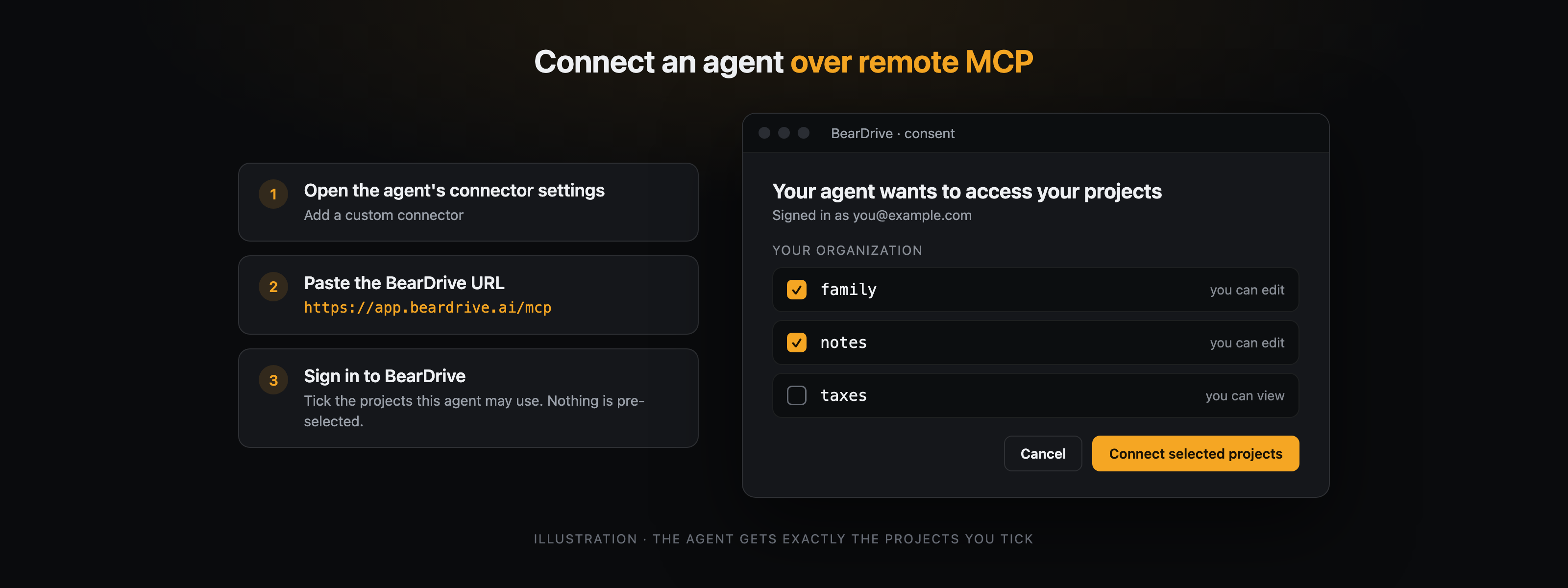
Nothing on the consent screen is pre-selected, and one connection can carry several projects. Grok Bot gets exactly what you tick. A project you create later needs a new connection.
What can Grok Bot do with the folder?
It sees one filesystem with each connected project as a top-level folder. BearDrive's MCP server gives a connected agent these tools:
| Tools | What they do |
|---|---|
list, read, glob, grep | Browse and search every connected project at once. |
write, edit, delete, move | Change files, in projects you can edit. |
history, restore | See who changed a file and when, and put an older version back. |
There is no shell and no mkdir: writing notes/trips/lisbon.md creates the folder on the way. A write is refused if the file changed since the agent read it, so a connected agent cannot quietly overwrite someone else's edit. Every change lands in the project's History under your name.
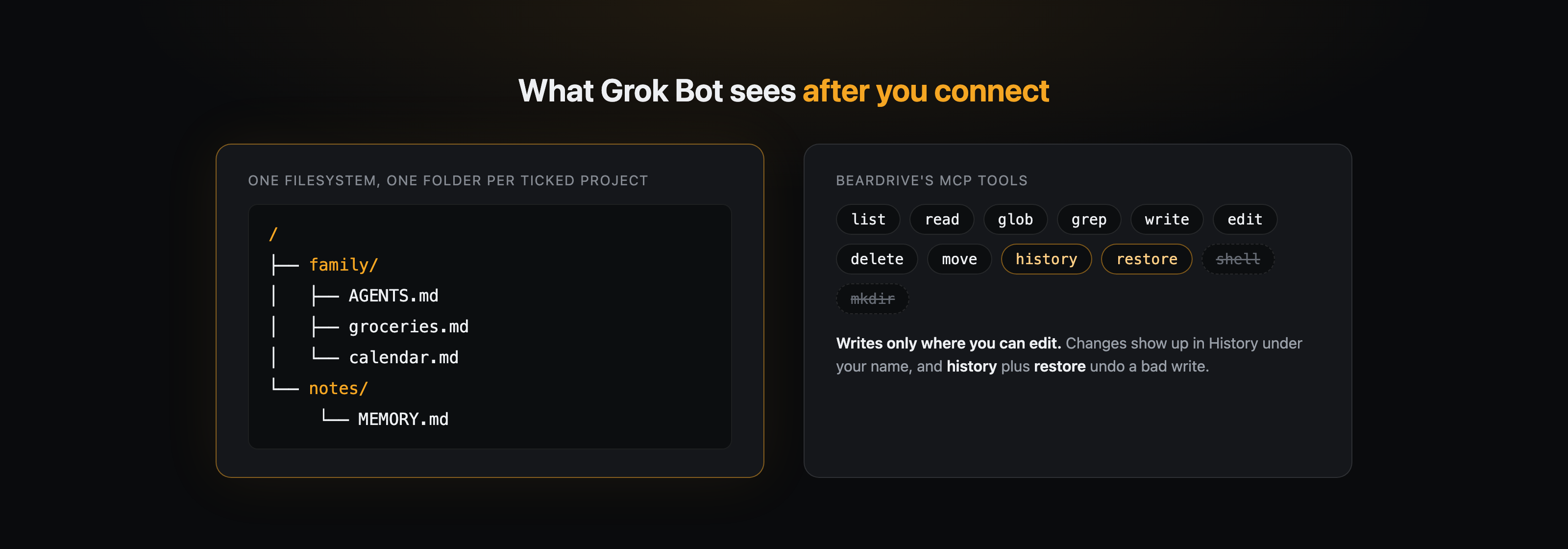
To tell Grok Bot how to use the folder, put an AGENTS.md at the project's root ("meeting notes go in meetings/YYYY-MM-DD.md"). BearDrive shows it to the agent when it lists the project and names it again on every file it reads or changes.
Can you share Grok Bot's memory with other agents and people?
Yes, because it is just a project. Your coding agents can sync the same project to a folder on disk with the BearDrive CLI, and other MCP clients, such as ChatGPT, Claude or Meta Muse, connect with the same URL. Invite your partner, family or teammates to your BearDrive organization and their agents can read the same files.
Keep what is personal in a separate project. Every member can write a project by default; set a project's default to No access under Project settings, People, before you invite anyone, and only you (and organization owners) can open it. See your agents, one memory for the full picture.
What if Grok Bot writes something wrong?
Every version of every file is kept. Open the file's History in BearDrive and restore the version from before the mistake, or ask the agent to do it with the history and restore tools. A restore is a new change, so nothing is erased.
Questions
- Does Grok support MCP?
- Yes. As of October 2026, Grok Bot can connect to a custom remote MCP server. Add one as a custom connector in Grok Bot's connector settings and give it the server's URL. For BearDrive that URL is https://app.beardrive.ai/mcp.
- Is BearDrive part of Grok?
- No. BearDrive is a separate folder of ordinary files that it offers to Grok Bot through the connector. It does not change or import anything inside Grok. The files simply stay in BearDrive after the conversation ends, where your other agents and the people you share the project with can read them too.
- Can Grok Bot see all my BearDrive files?
- No. It sees only the projects you tick on BearDrive's consent screen, and nothing is pre-selected. In a project you can only view, it can only read. Folders you cannot see stay invisible to it, and projects you create later need a new connection.
- Can my family or my other agents use the same folder?
- Yes. Invite people to your BearDrive organization and they can open the project with their own agents. Claude Code, Codex, Gemini CLI and Hermes can work in the same project through a synced folder on disk, and other MCP clients, such as ChatGPT, Claude or Meta Muse, through the same URL.
- How do I disconnect Grok Bot?
- Open the project menu at the top of the BearDrive sidebar, then Connected agents, and press Disconnect. From a terminal, bdrive mcp list and bdrive mcp revoke do the same. Access stops on the agent's next call, and a connection unused for 30 days expires on its own.